Language:
How to Configure Entra MFA
Multi-Factor Authentication (MFA) is an essential security feature that adds an extra layer of protection to your Microsoft 365 account. By enabling MFA, you’ll be required to provide an additional form of identification beyond your username and password. This means that even if someone gains access to your login credentials, they won’t be able to access your account without the additional authentication.
Here's a step-by-step guide on how to set up MFA for Microsoft 365:
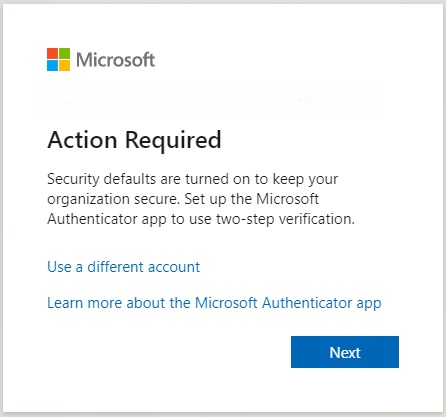
- When you get the "More information needed" or "Action Required" message, click “Next” to launch the setup process for MFA.
- Choose between using the Microsoft Authenticator app or another authenticator app. If you already use an authenticator, we suggest you use that. If not, install the Microsoft Authenticator app from your store. Click “Next”.
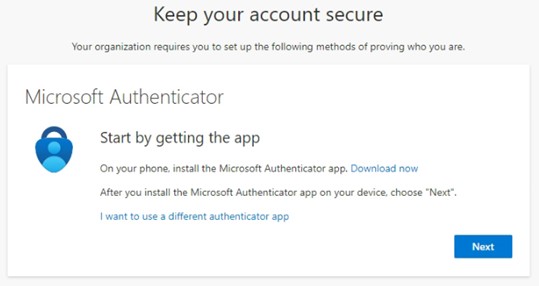
App Links:
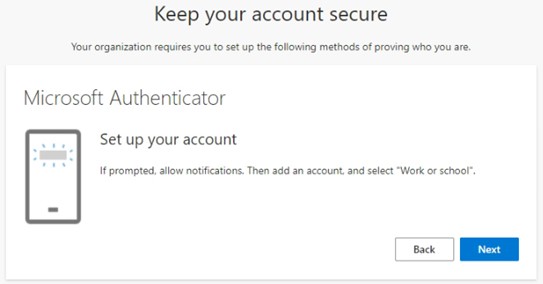
- On the Authenticator app, allow notifications if prompted. Tap "Add account" and select "Work or School".
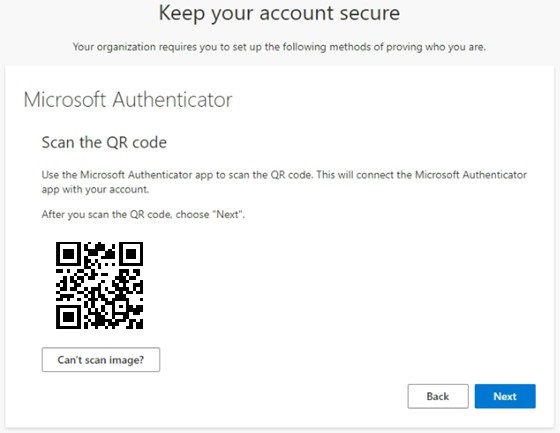
- Scan the QR code displayed on your computer and then click “Next”.
- Accept the push notification or enter the 6-digit code from your app.


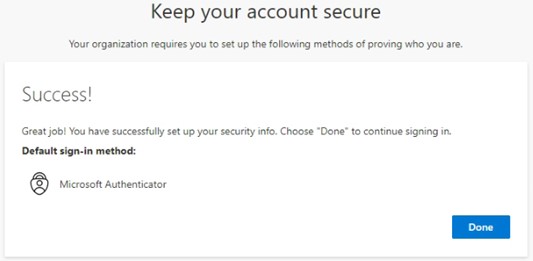
- Your account is now protected by MFA.